Find your car’s diagnostic port
Cars sold in the US since 1996 and in Europe since 2001 should generally have a diagnostic port. Confirm your car’s port is accessible before buying a scanner.
The port is usually under the dashboard on the driver side. It is often below the steering wheel. The port is hard to find by touch, so use your eyes and a flashlight to look for it.
Choose a scanner
Pelican connects to OBD scanners over three kinds of connection:
- A Bluetooth Low Energy (BTLE) scanner connects automatically when it has power and your phone is near. It works with wireless CarPlay. BTLE scanners work best with Pelican.
- A classic Bluetooth scanner must be paired in the iOS Settings app first. After that, it reconnects automatically as long as it maintains continuous power.
- A Wi-Fi scanner needs to be connected to manually every time you use it. Wi-Fi scanners can’t be used with wireless CarPlay.
See Tested scanners for the scanners that have been tested with Pelican, including their performance characteristics and costs.
Connect a Bluetooth scanner
Don’t pair BTLE scanners in the iOS Settings app; Pelican discovers BTLE scanners automatically. Classic Bluetooth scanners, however, must be paired in the iOS Settings app first.
- Plug the scanner into your car’s diagnostic port. Start the car.
- For a classic Bluetooth scanner, pair it in iOS Settings > Bluetooth.
- In Pelican, open Settings > OBD scanning.
- Turn on OBD scanning.
- The first time, read the terms and tap Accept terms and conditions.
- Turn on Connect over Bluetooth. Allow Bluetooth when iOS asks.
- Tap the scanner in the list. If the scanner isn’t in the list, unplug it and plug it back in.
Once the scanner is found, a row will appear showing the scanner’s connection state. If the scanner still doesn’t appear, see Tested scanners to confirm that it works with Pelican.
Connect a Wi-Fi scanner
Turn on OBD scanning first, like in Connect a Bluetooth scanner.
- Plug the scanner into the diagnostic port. Start the car.
- In the iOS Settings app, join the Wi-Fi network of the scanner.
- In Pelican, open Settings > OBD scanning.
- Turn on Connect over Wi-Fi. Allow Local Network access when iOS asks.
- If the manual of the scanner gives an IP address and a port, tap Wi-Fi settings. Enter the IP address and the Port.
- Tap the scanner in the list.
Once the scanner is found, a row will appear showing the scanner’s connection state. If the scanner still doesn’t appear, see Tested scanners to confirm that it works with Pelican.

Connect automatically
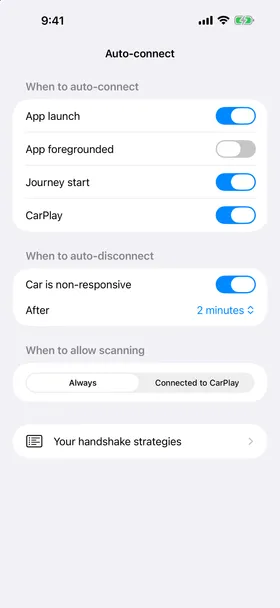
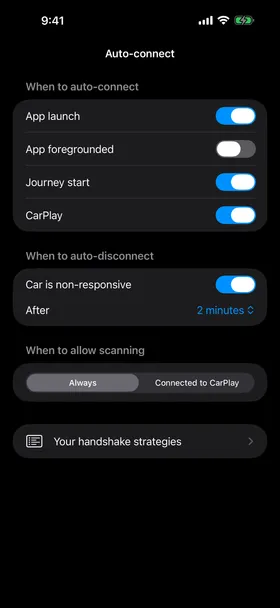
Auto-connect known scanners is on by default. When enabled, Pelican will, under certain conditions, connect to any scanner it detects. To customize this behavior, open Settings > OBD scanning > Auto-connect.
- When to auto-connect lets you toggle which events will cause Pelican to automatically look for a scanner.
- When to auto-disconnect lets you configure when Pelican decides to give up on trying to talk to a non-responsive scanner.
- When to allow scanning is Always or Connected to CarPlay. With Connected to CarPlay, Pelican may miss data from the start and the end of each trip because the scanner will wait until CarPlay is active.
Unplug the scanner after a drive
Most OBD scanners, particularly BTLE ones, let any device connect to them while they have power. A device that connects to the scanner can send commands to your car, and some of these commands can unlock the car. A plugged-in scanner can also put a drain on the 12V battery.
Unplug the scanner when you leave the car. You can also use an OBD extension cable with a power switch. Turn the switch off when you leave.
Scan without a time limit
Free scanning stops after five minutes in each scan session, enough to pull basic data. To remove the limit, see Membership plans or ScanPass.