Build a shortcut
Use Apple Shortcuts to read the state of your car and remotely control the app.
Pelican exposes many actions that can be used in Shortcuts workflows. If Shortcuts is new to you, read the Shortcuts User Guide first.
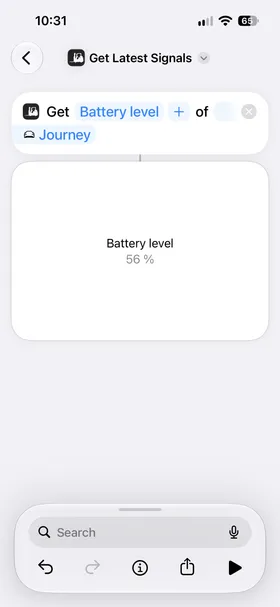

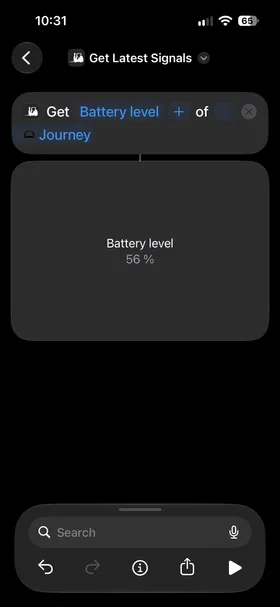
Example: Read your car’s battery level
This shortcut reads the battery level of your selected car and shows the value.
- Open the Shortcuts app, then tap + to start a new shortcut.
- Search for Get Latest Signals, then tap the action to add it.
- Tap Signals, then select Battery level. Tap Car to select the car you want to read from.
- Tap the run button at the bottom of the editor.
Shortcuts shows the battery level of your car.
Use one car in many actions
Most Pelican actions need a Car: one of the cars in your garage. The navigation and place actions don’t need one.
A shortcut often uses the same Car many times. Add Get Car one time at the start. Then select its result as the Car in the other actions. To use a different car later, change the car in Get Car only.
Find an action
Each Pelican action has its own page. The page shows the action as Shortcuts shows it, its inputs and the values that it returns. See Automation for examples. Commands such as Lock need a Connected Account and a car that supports the command.